Downloading OnTrack+ data offers you additional flexibility in the way you monitor, analyse and use the information.
We recommend integrating OnTrack+ into your routines termly for data analysis, cross-team triage and action-tracking to create a transparent, joined-up careers learning journey for every learner.
This article walks you through how to download OnTrack+ data into an excel spreadsheet.
Downloading OnTrack+ data
1. Log in to Compass+ using your email address and password - https://auth.careersandenterprise.co.uk/compassplus
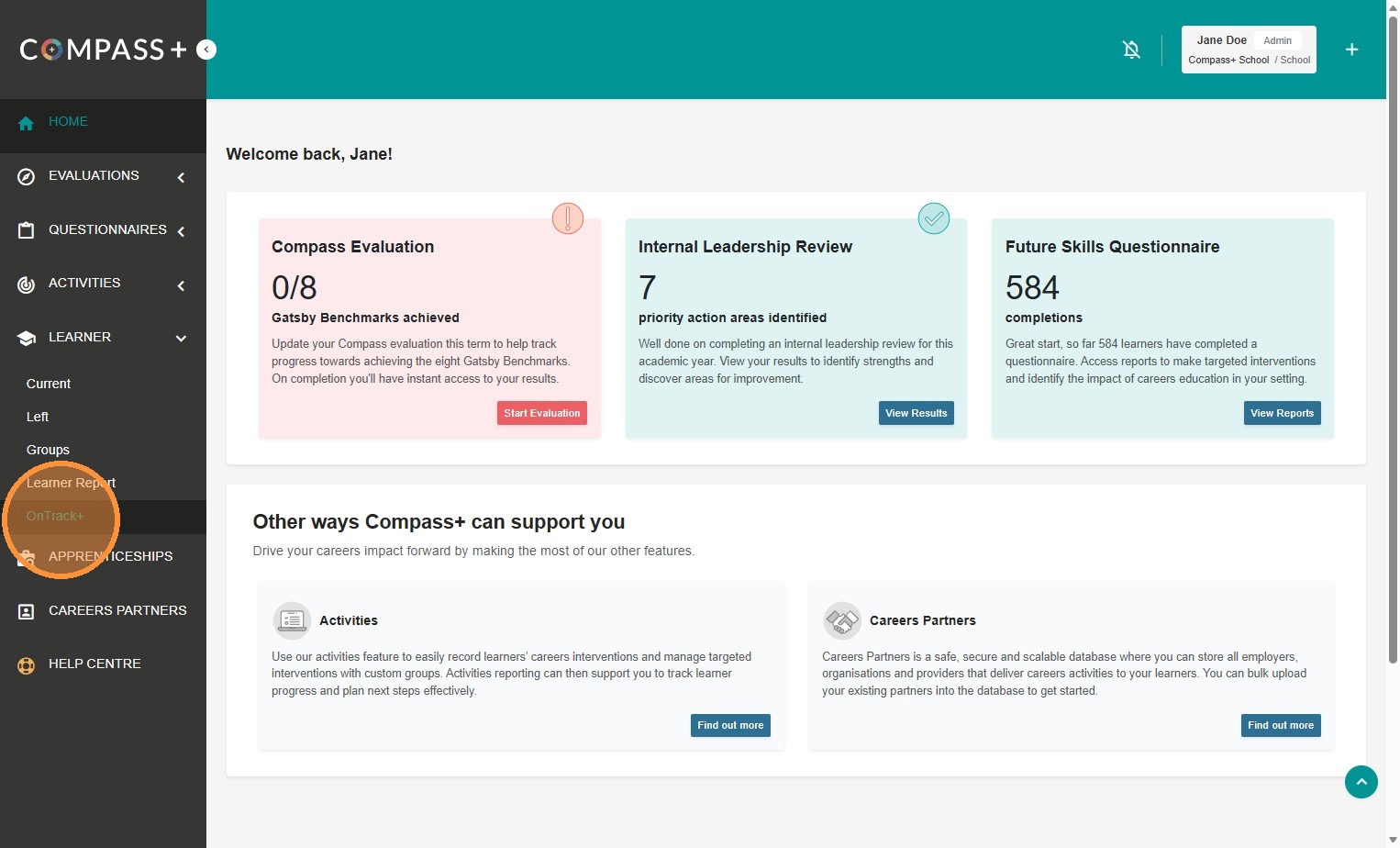
2. Click on Learner > OnTrack+ from the main navigation bar:
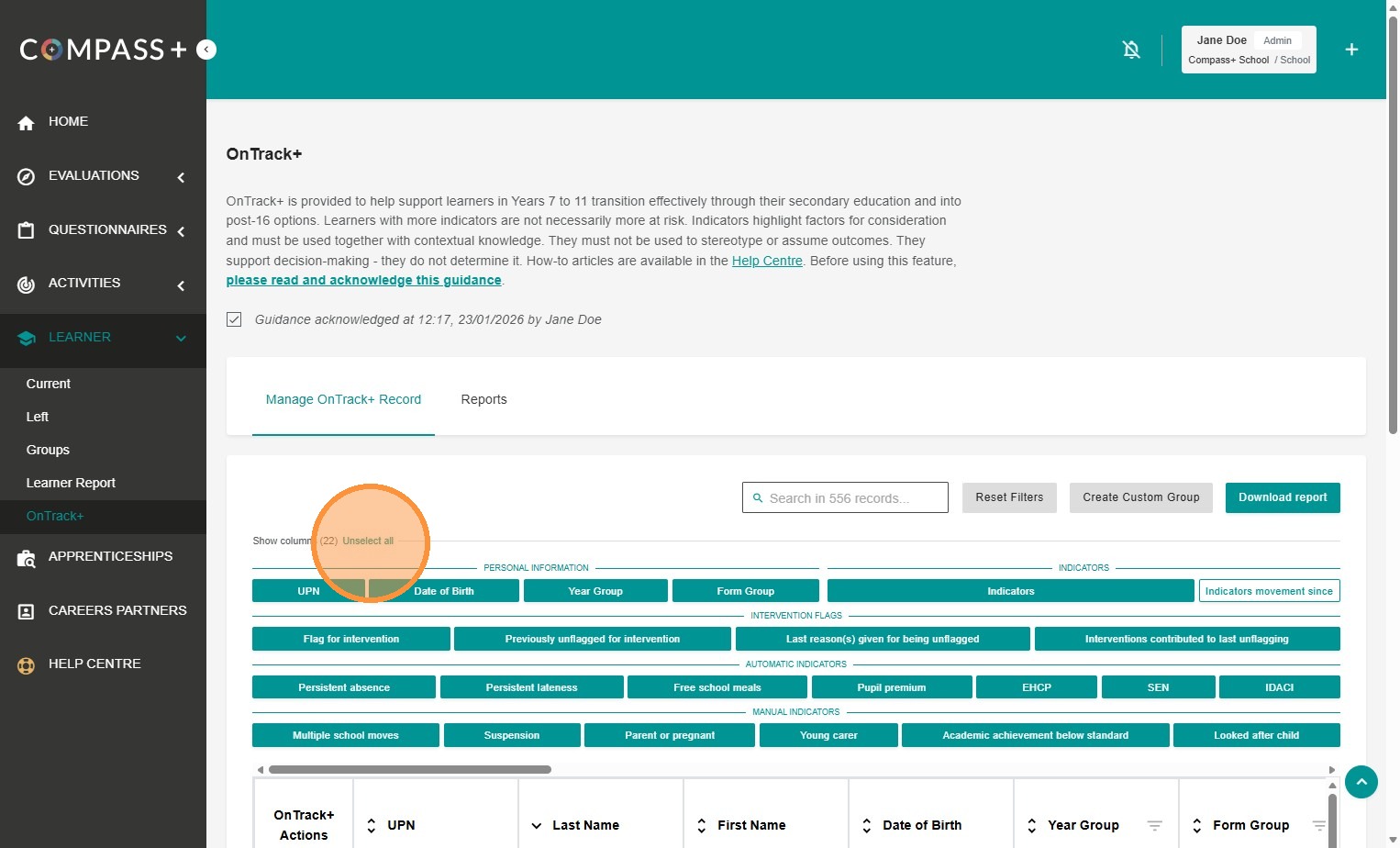
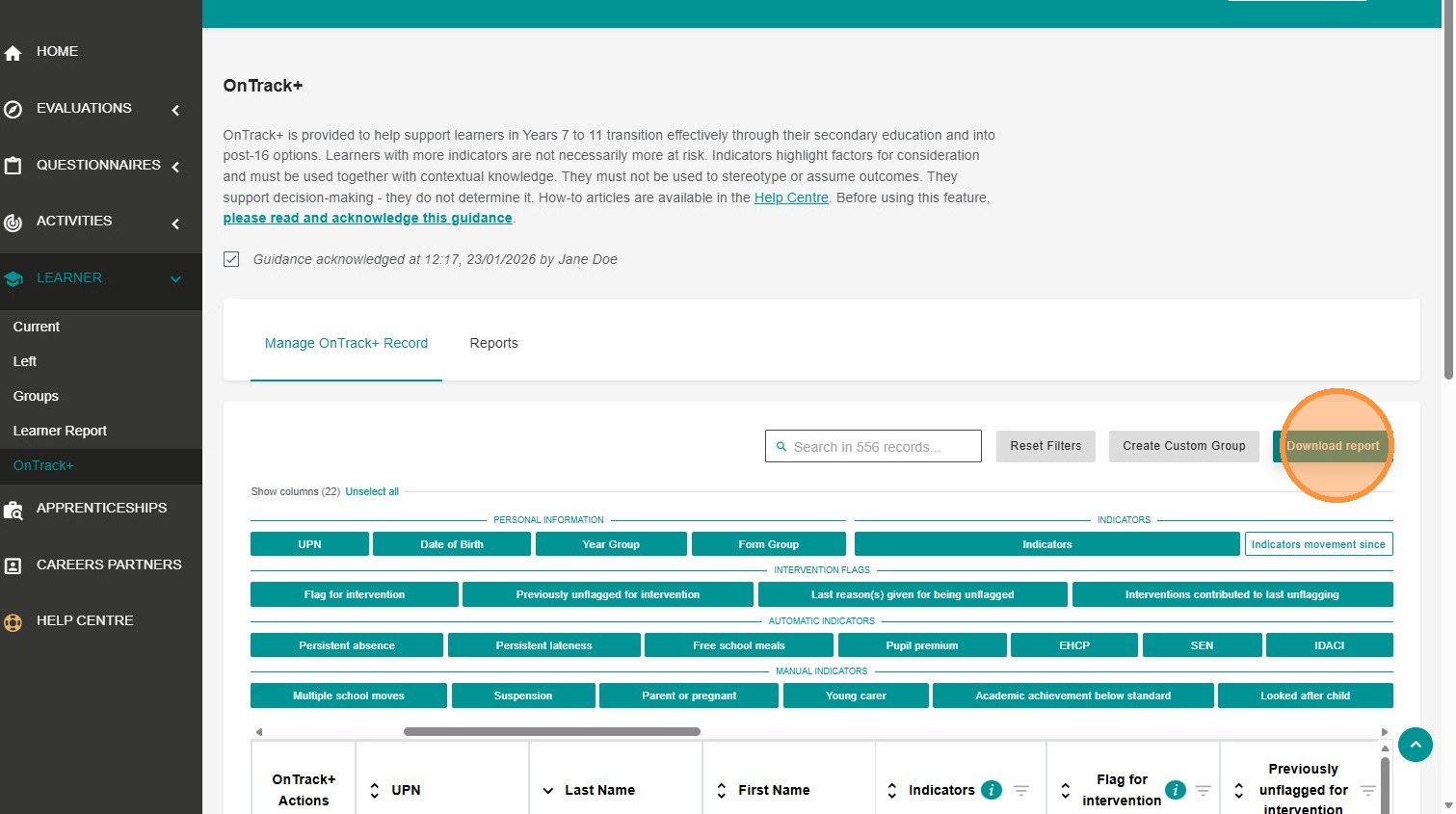
3. Choose the data you want to include in your table download by selecting the relevant filters and indicators.
To select all filters and indicators click 'Select all'. To unselect all filters and indicators - apart from OnTrack+ Actions, Last Name and First Name - click 'Unselect all':
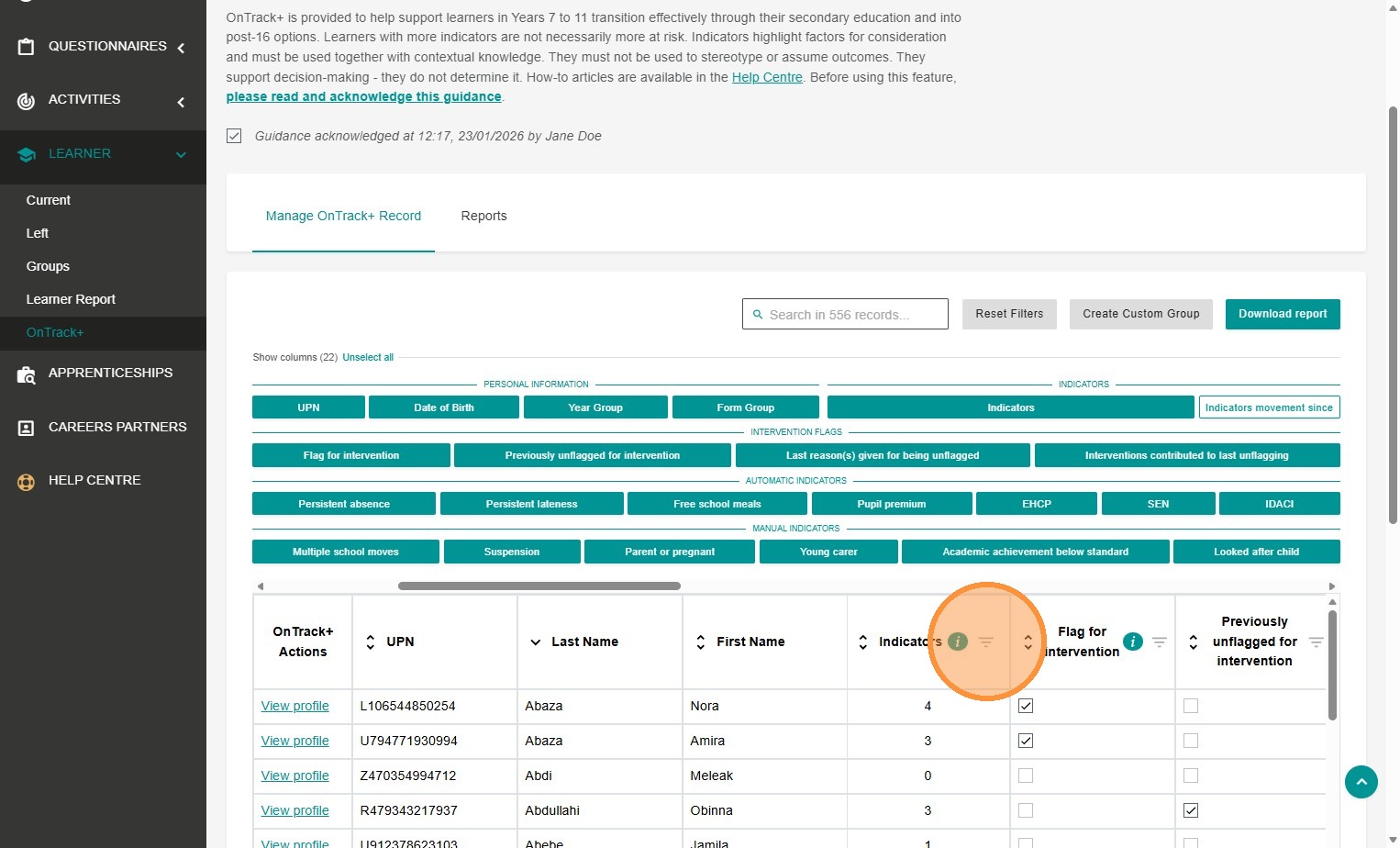
4. Apply any additional filters to the table by clicking the inverted triangle:
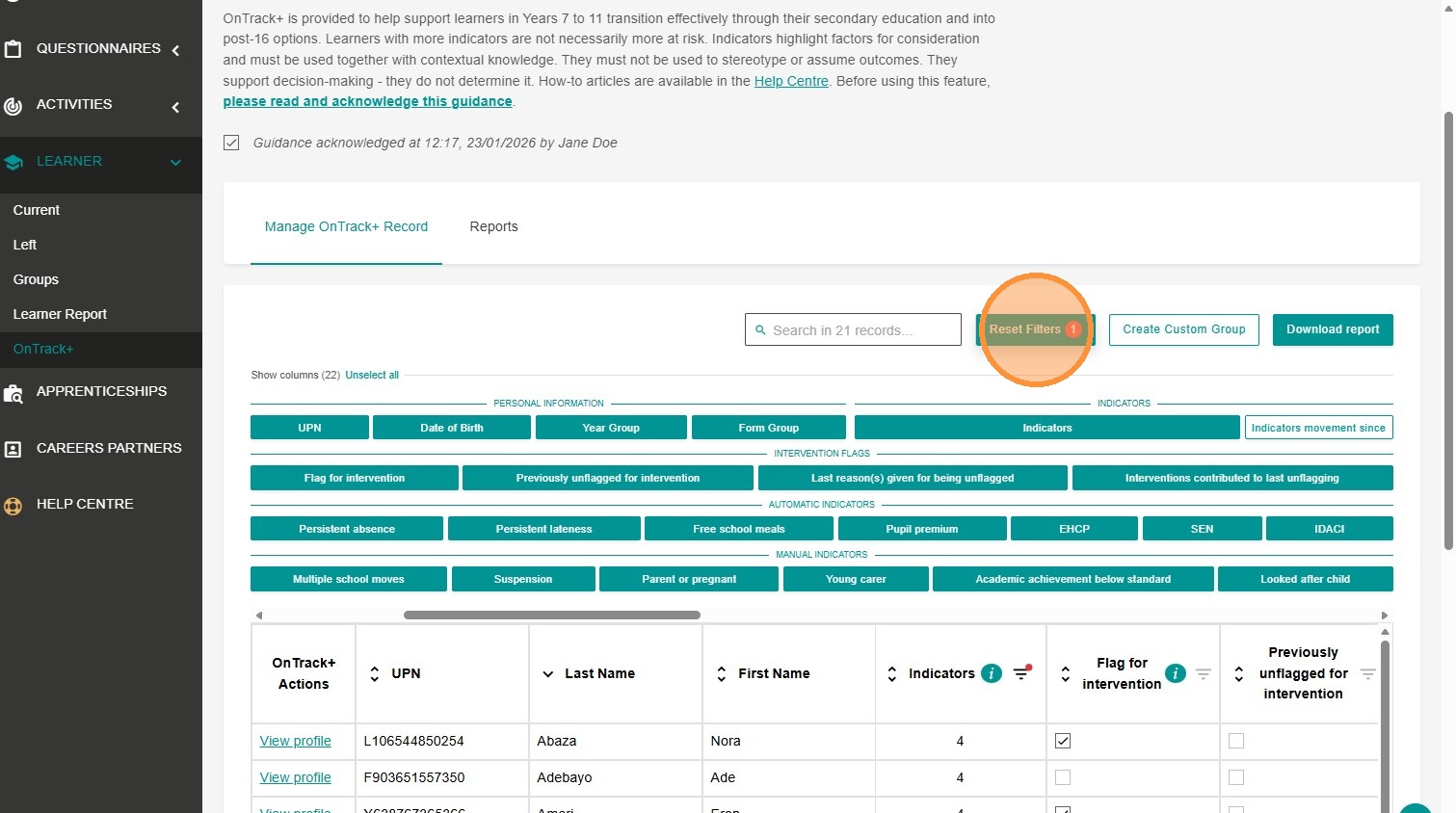
5. To reset filters click 'Reset Filters':
6. To download a copy of the data shown in the table, click 'Download report':
7. Click 'Download Report' again in the dialog box:
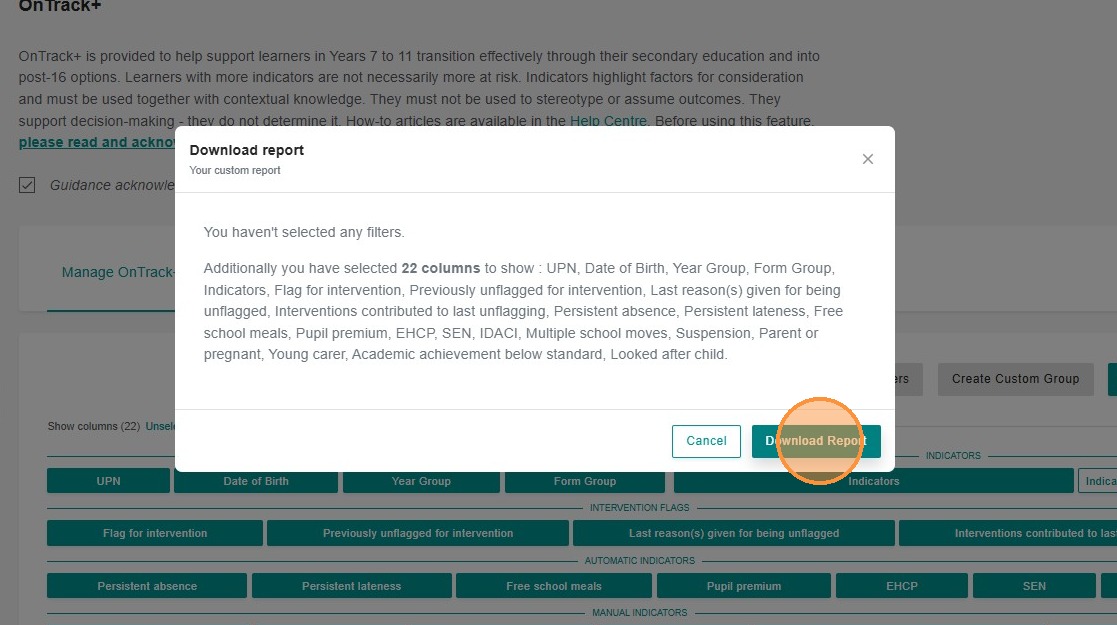
8. An excel spreadsheet with all this information will download onto your computer.