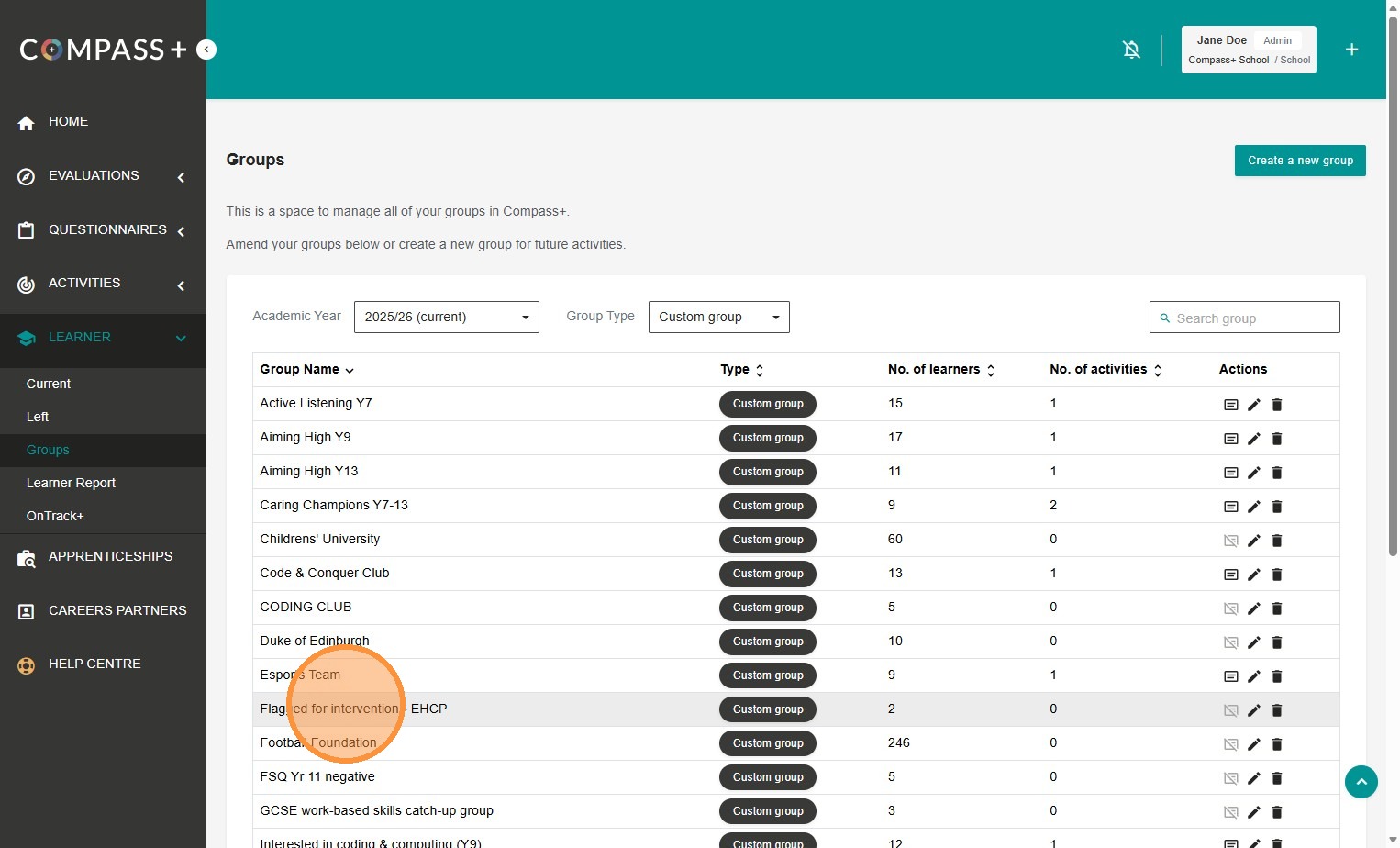
You can create a custom group for learners that have been identified as having the OnTrack+ indicators you have selected.
This article walks you through how to create custom groups directly from OnTrack+.
If you want to learn more about custom groups in general and how they are a great tool to manage targeted careers provision, please see this article > How to create a Custom group
We recommend integrating OnTrack+ into your routines termly for data analysis, cross-team triage and action-tracking to create a transparent, joined-up careers learning journey for every learner.
Creating custom groups from OnTrack+
1. Log in to Compass+ using your email address and password - https://auth.careersandenterprise.co.uk/compassplus
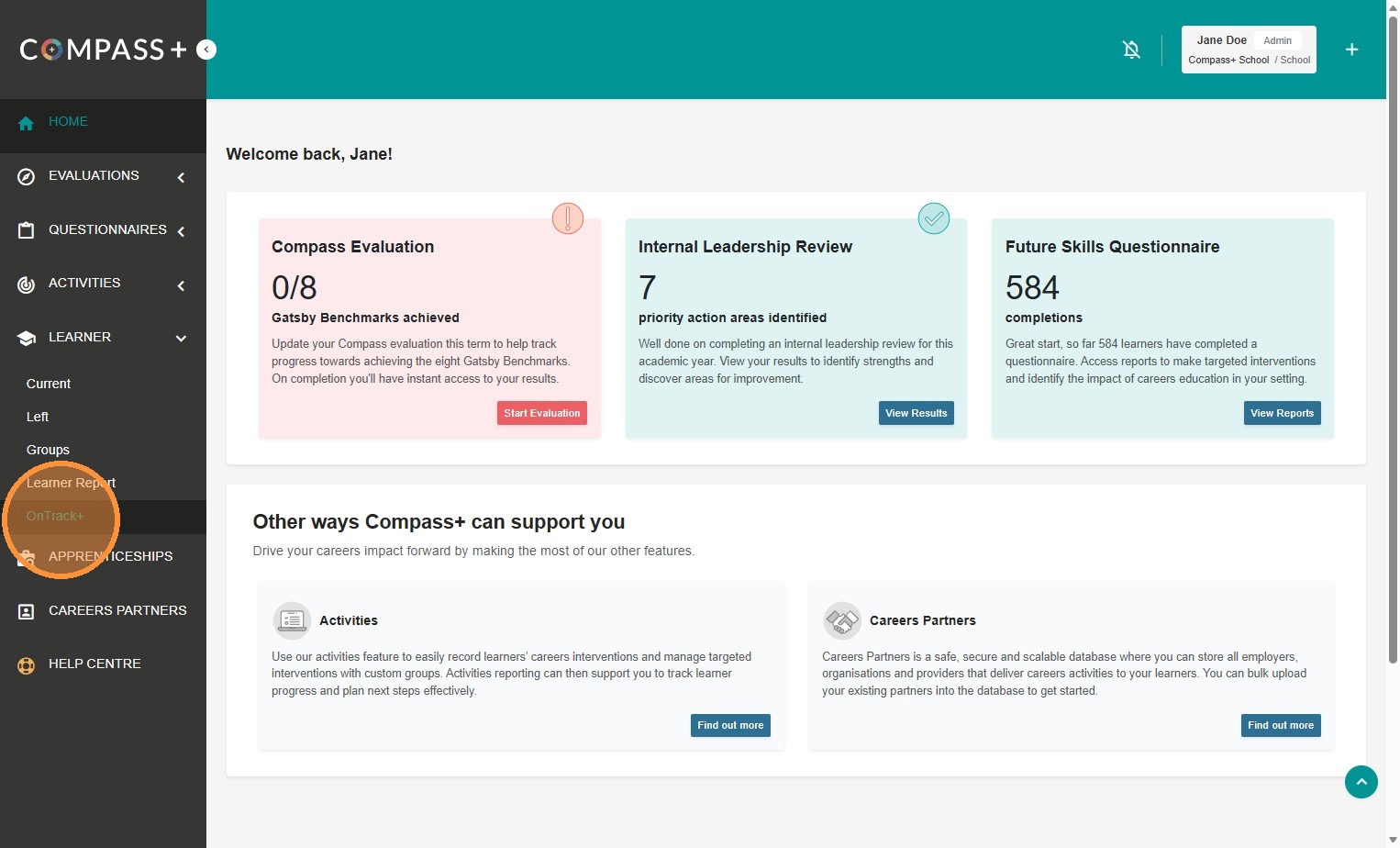
2. Click on Learner > OnTrack+ from the main navigation bar:
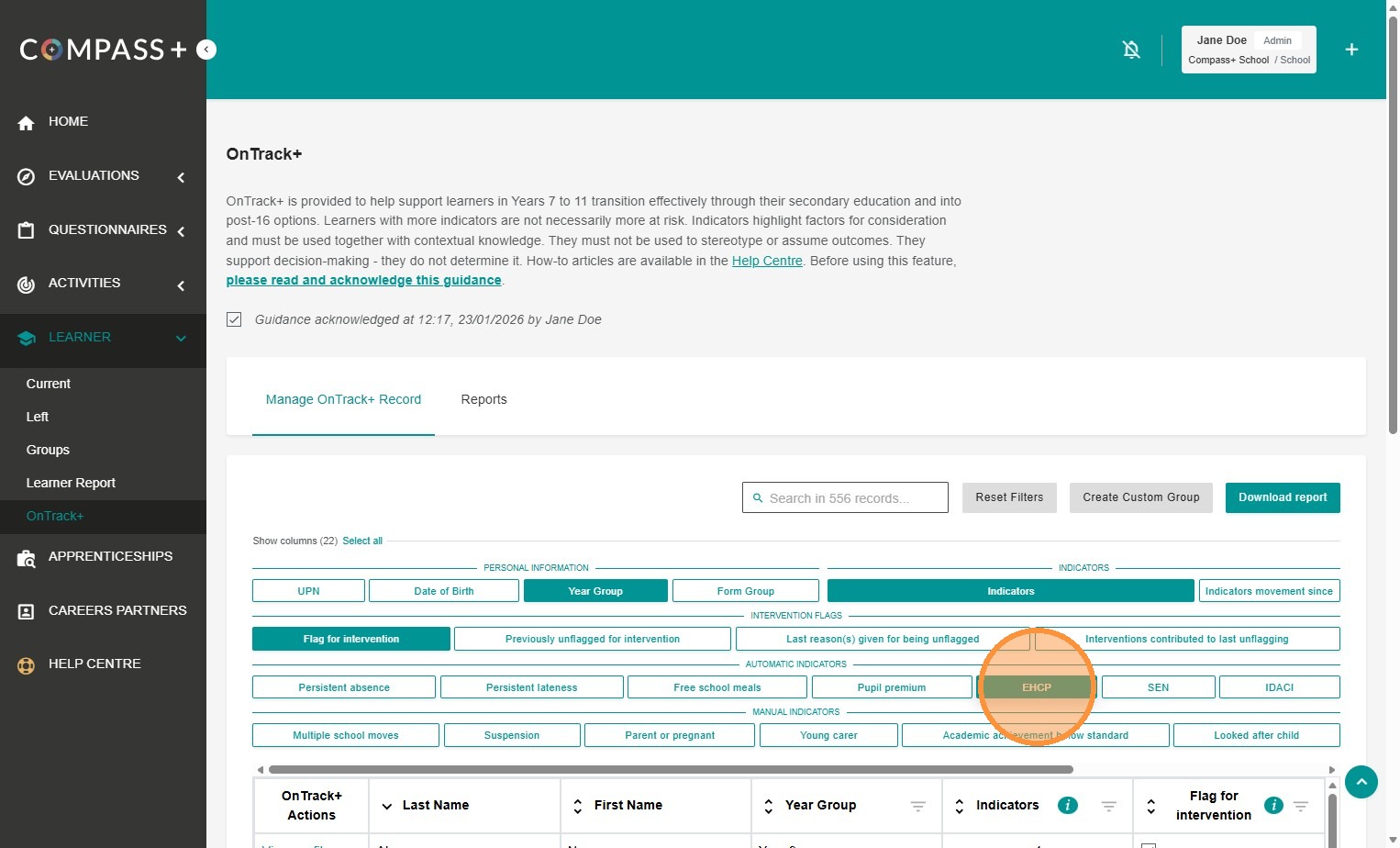
3. Select the filters and OnTrack+ indicators you want to create the custom group for. In this example, we have only selected EHCP - as Year Group, Indicators and Flag for intervention are automatically pre-selected:
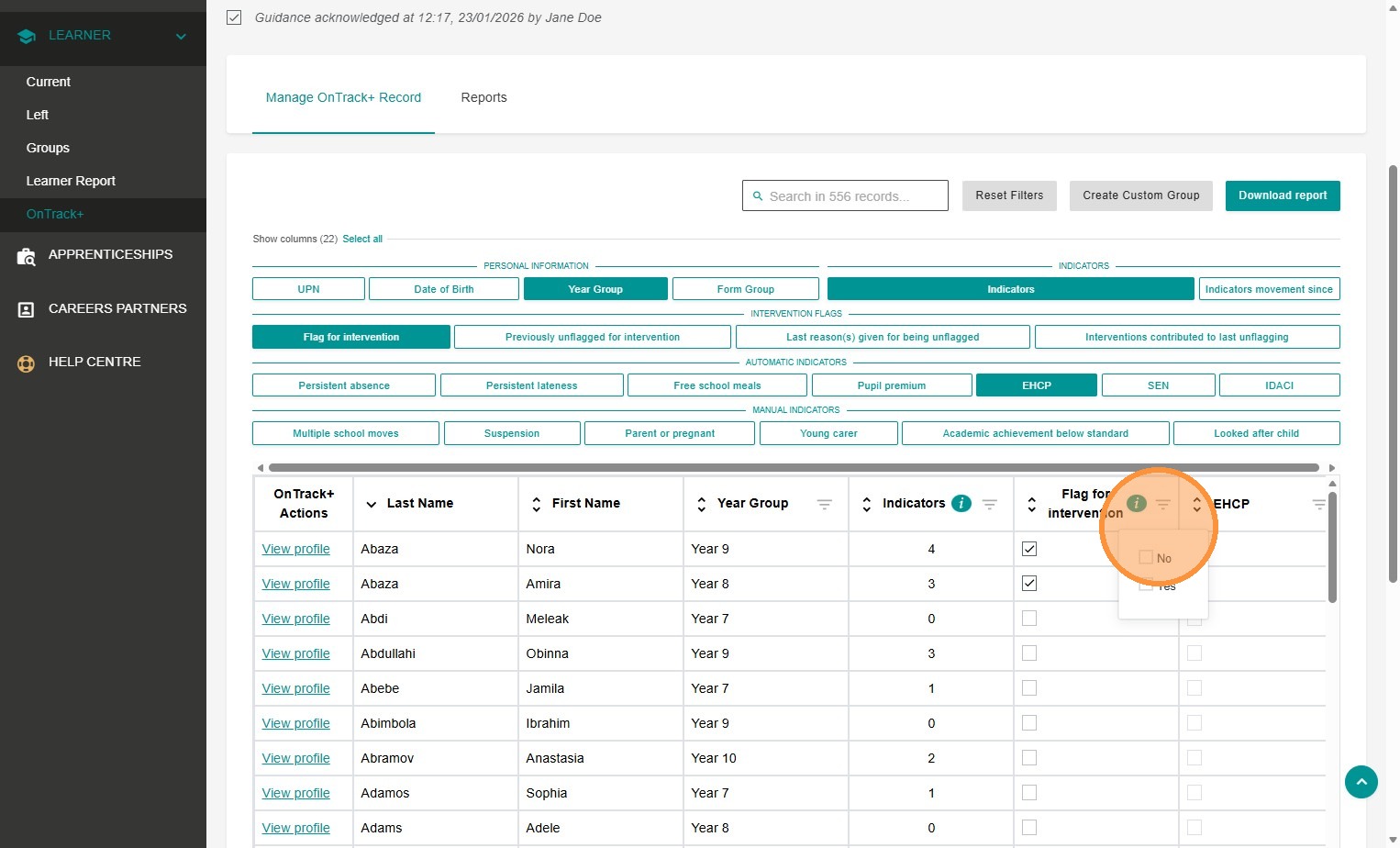
4. Apply the relevant column filters - in this example, we have selected 'Yes' for Flag for intervention and 'Yes' for EHCP as we want to create a Custom group of all learners in Years 7 to 11 who have been flagged for intervention, are therefore at risk of NEET and also have an EHCP.
Please note: You can only create a custom group if column filters have been applied:
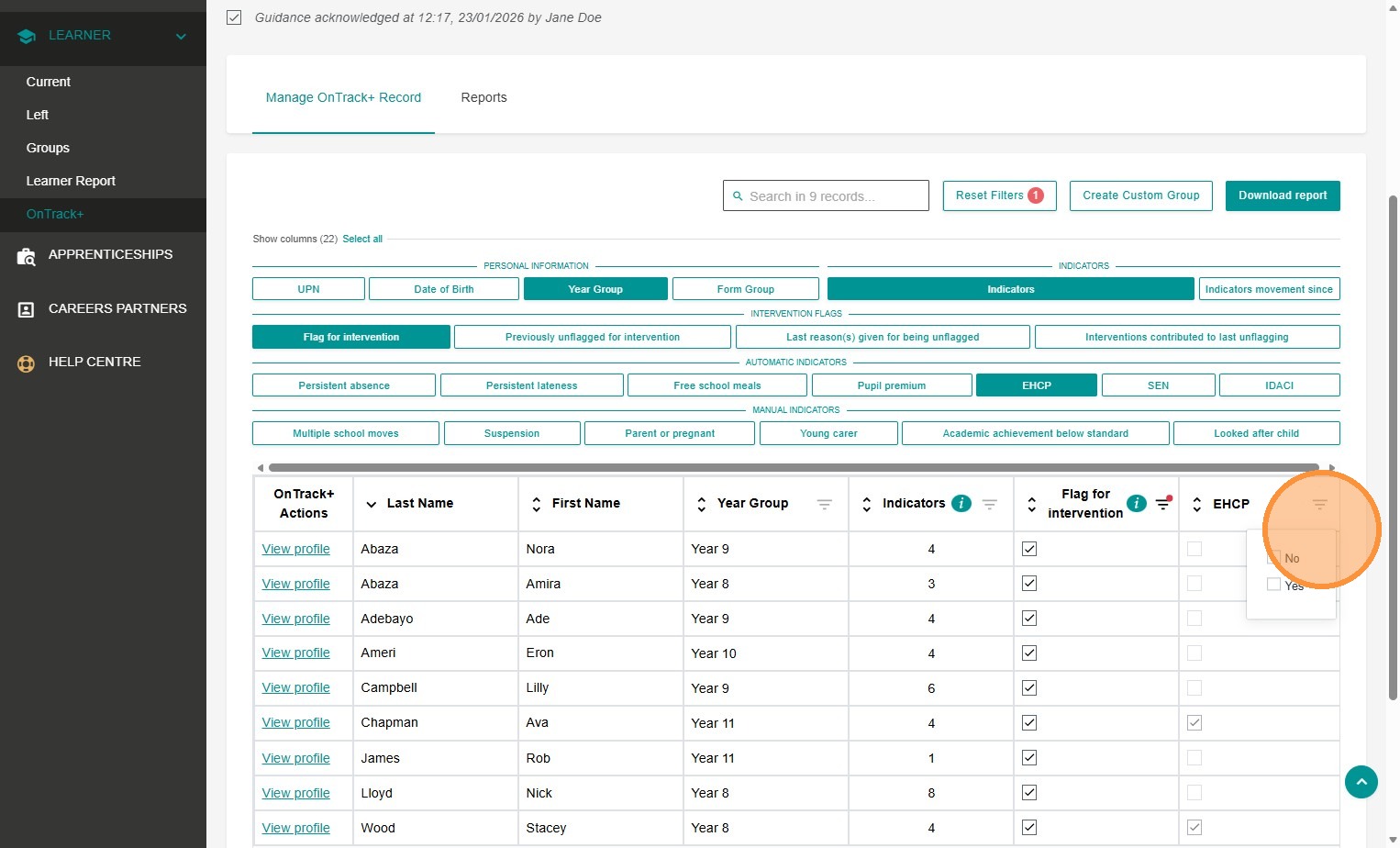
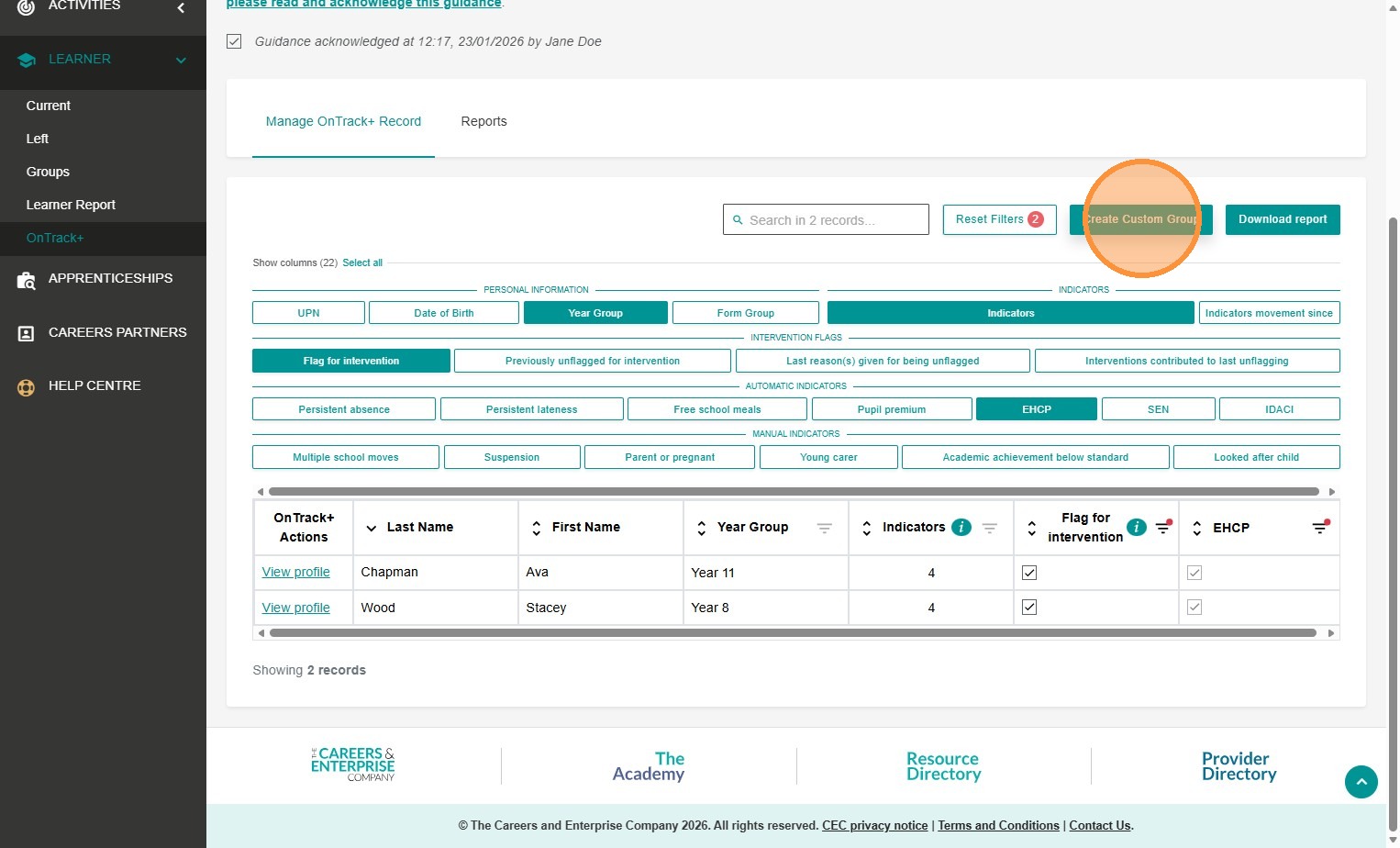
5. Click 'Create Custom Group':
6. A pop-up box will display. Enter the required information for the custom group, such as group name and make any edits or amendments necessary, for example, to the membership start and end dates. Click 'Save' once you are happy with your custom group:
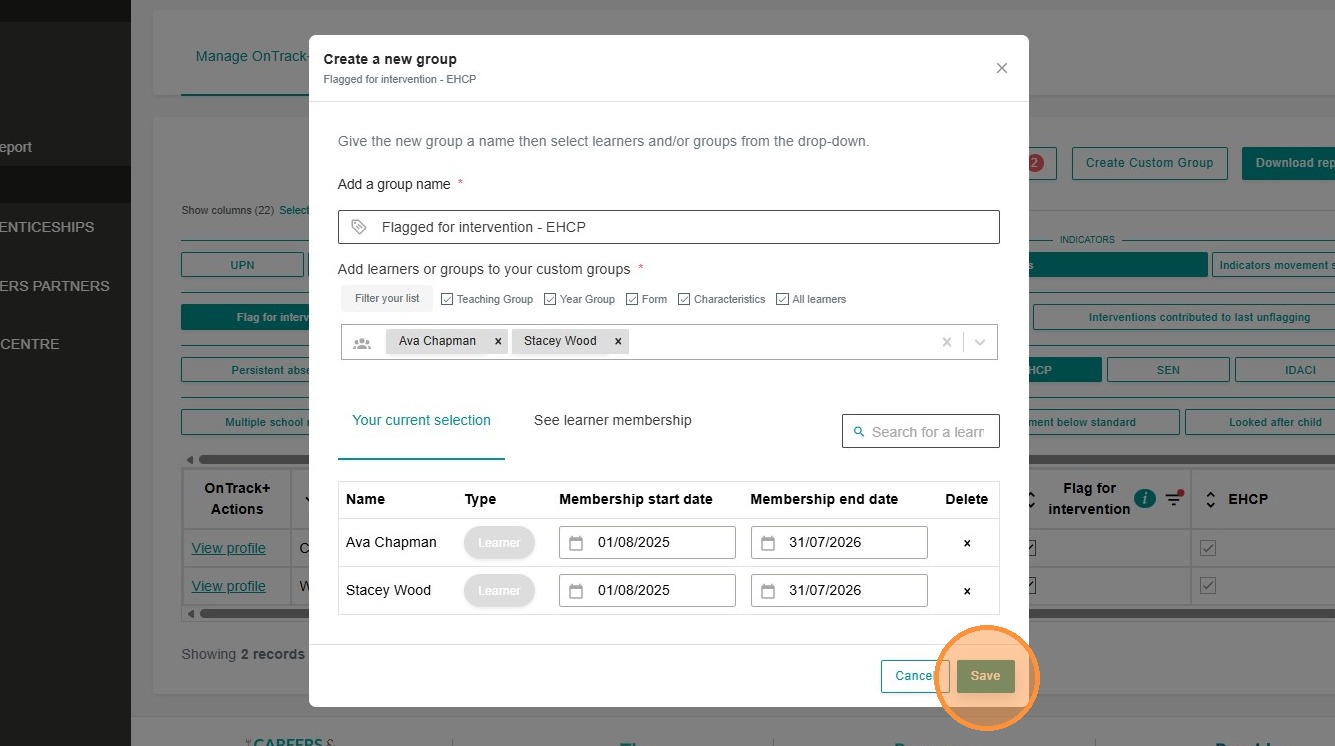
7. The custom group will automatically be saved to your Groups in Compass+: